CASE STUDY
Sturely
Sturely Cockpit is a web application for creating, targeting and measuring campaigns across web and app channels. It was developed by Devox Technologies.
Campaign management | Creative asset library | URL targeting | Performance insights
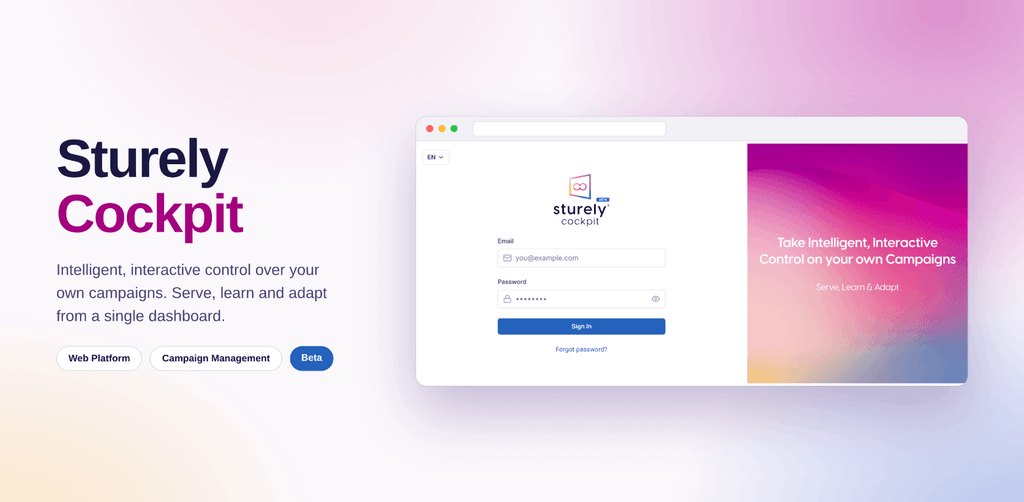
The Sturely Cockpit sign in screen.
Project Overview
Sturely is a digital product developed by Devox Technologies to give campaign teams one organized place to run their work. Its web application, Sturely Cockpit, brings campaigns, creative assets, reusable templates, placement areas, targeting rules and performance reporting into a single interface.
The sign in screen sets out the idea behind the product: take intelligent, interactive control of your own campaigns, then serve, learn and adapt. Each area of the application supports one step of that cycle, from preparing an asset to reading how it performed.
Devox Technologies developed the product and its interface, including the navigation, the data tables, the filtering tools and the reporting views shown throughout this case study.
Problem
A running campaign depends on many connected pieces. There are creative assets in several formats, sizes and languages. There are placement areas on websites and apps, rules about which pages should show which asset, and performance numbers that need to be read against all of it.
When these pieces are handled separately, everyday tasks become slow. Assets are hard to find and rebuilt more often than they need to be. It is unclear what is live and where. Showing something new on a page means touching that page again. Questions about performance take effort to answer because the data cannot easily be narrowed to one site, placement or campaign.
- Scattered assets. Images, video and HTML creatives multiply across sizes, devices and languages.
- Repeated placement work. Each new campaign should not mean another change to the page itself.
- Imprecise targeting. Teams need to decide exactly which pages show an asset and which do not.
- Hard to read results. Performance needs to be sliced by domain, position, campaign and language.
Analysis
Looking across the screens of Sturely Cockpit, a few deliberate decisions stand out. Together they shape how the product feels to use and how quickly a person can find their way.
One structure for every area
Each screen opens with the same arrangement: a dark side panel that names the area and summarizes what it does, a narrow icon rail for navigation, and a light workspace with a clear title, a one line description and the main action at the top right. A person who learns one screen already understands the others.
Navigation that stays out of the way
The icon rail keeps the active area highlighted and tucks further areas behind a More control. This leaves most of the width for the data people came to work with.
Lists that are easy to scan
Every list uses the same toolbar: search by name, dropdown filters for status, type or language, an archived toggle, refresh, view options and pagination that states how many items exist.
Meaning shown in form
Status, priority, rule type and language appear as color coded labels, and element types and devices appear as icons paired with text. State can be read at a glance without opening a record.
Reuse built into the interface
Element sets, position sets, rule sets and a template library are offered next to the single item actions. Work done once can be applied again.
Readable by default
The workspace uses a light surface, clear text sizes, labeled filters and form fields, and concise column headings. Dense tables remain legible because spacing and alignment stay consistent from screen to screen.
Solution
Sturely Cockpit answers these challenges with six connected areas. Devox Technologies gave each one its own focused screen while keeping the experience consistent across the product.
Campaigns
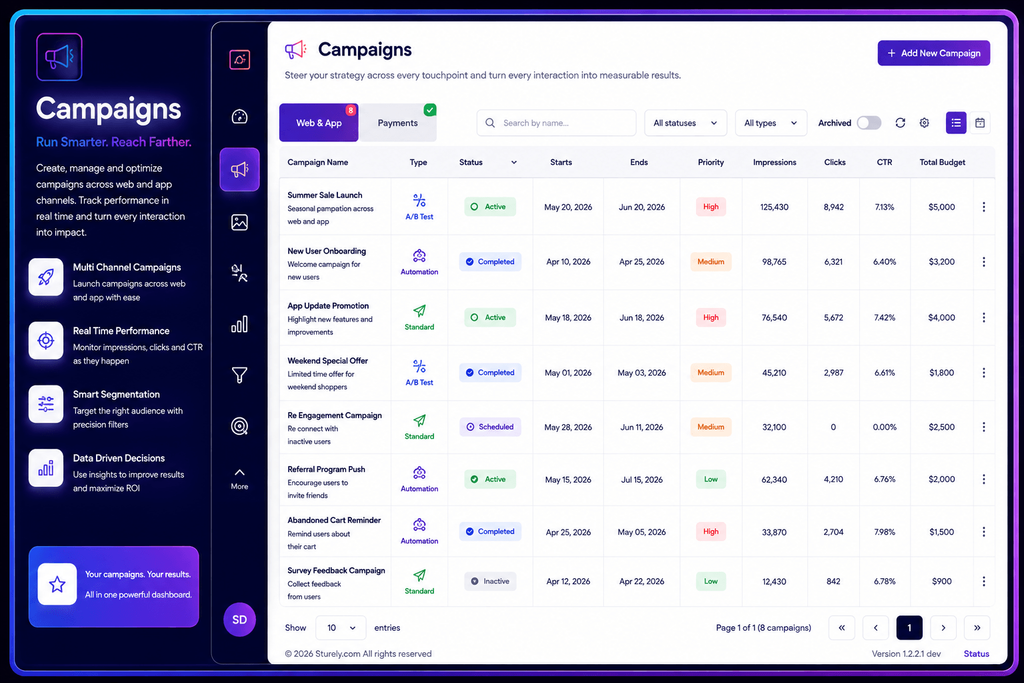
The Campaigns screen is where teams create, manage and optimize campaigns across web and app channels. Each row shows the campaign name with a short description, its type, status, start and end dates, priority, impressions, clicks, click through rate and total budget.
Campaign types such as A/B Test, Automation and Standard are marked with their own icons, and tabs separate Web and App campaigns from Payments. The side panel summarizes the area through multi channel campaigns, real time performance, smart segmentation and data driven decisions.
Elements
Elements are the creative assets that campaigns serve. The Elements screen lists each asset with its type, size, supported devices, language, number of view rules, last updated date and status, so a library of images, videos and HTML creatives stays easy to navigate.
A Preview button on every row lets a person check an asset without leaving the list. Generic elements and A/B sets sit on separate tabs, and filters narrow the list by element type, language and status.
Elements, creative assets organized by type, size, device, language and status.
Template Library
The Template Library lets teams build reusable element templates once and apply them many times. Templates carry the layout, custom fields and bundled assets, so whoever builds the next element only fills in values instead of rebuilding a layout.
Each template shows its category, whether it is global or limited to a company, and how many times it has been used. Actions to edit, duplicate, download and delete sit on the row, and measurement can be switched on per template.
Positions
A position is a dedicated area on a domain where campaigns and their elements appear. The Positions screen lists each one with its position ID, domain, zone, fallback creative, element type, status and an Embed Script button.
The idea is to place the snippet once and keep the slot live. After that, the slot can be filled, refilled and retargeted without touching the page again. A fallback creative covers the space when no campaign qualifies.
View Rules
View Rules decide where each asset appears. A rule is either an include or an exclude, and it matches the page address by contains, starts with, ends with or exact match. Each rule can be scoped to one language or to every language.
The list shows the URL pattern, the number of linked elements and the last updated date, so one element can run across a whole section of a site or be held back from a single page.
Data and Insights
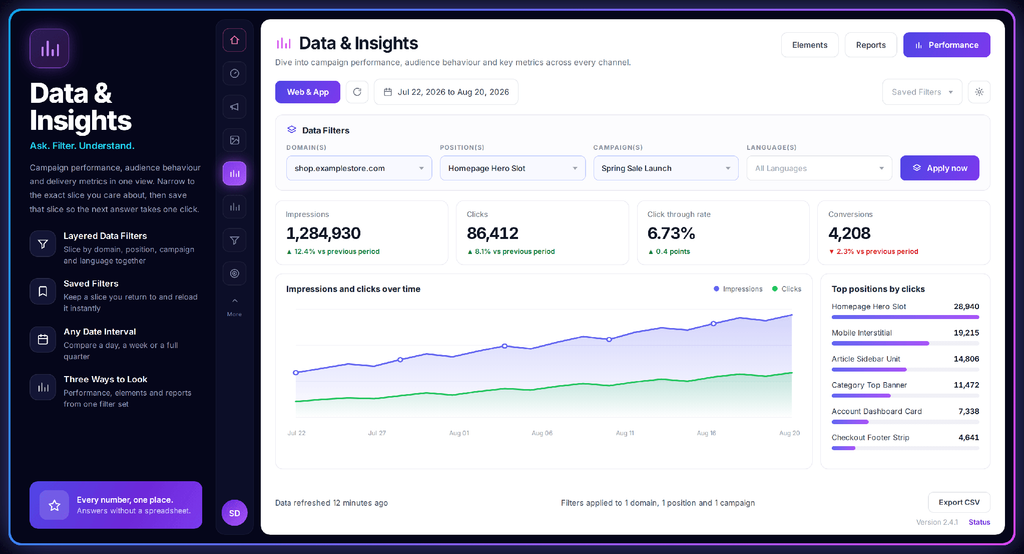
The Data and Insights screen closes the loop. Layered filters slice results by domain, position, campaign and language, and any date interval can be chosen. A filter set can be saved and reloaded in one click.
Summary figures for impressions, clicks, click through rate and conversions sit above a chart of impressions and clicks over time, with a ranked list of top positions by clicks beside it. A note states how recently the data was refreshed and which filters are applied, and an Export CSV button takes the results further. Performance, elements and reports are available as three ways to look at the same filter set.
Result
Sturely Cockpit is designed to make campaign work easier to organize, easier to repeat and easier to understand. The value comes from how the areas connect: templates feed elements, elements are placed in positions, view rules decide where they show, and insights report back on the outcome.
- Better organization. Campaigns, assets, placements and rules each have a clear home with consistent search, filters and status labels.
- Less repeated effort. Templates, sets and a place once embed script let teams reuse earlier work rather than start again.
- Precise control. Include and exclude rules, language scoping and fallback creatives give teams control over what appears and where.
- Clearer visibility. Saved filters, summary figures and a trend chart make performance questions faster to ask and to answer.
A product built around the whole campaign cycle
Sturely brings the full cycle of preparing, placing, targeting and measuring campaigns into one consistent application. Devox Technologies developed the product from its structure and workflows through to the screens people use every day, creating an experience that stays clear even as the amount of data grows.